Export or delete your data
Take a copy of your collection with you, or wipe every trace of it.
Your collection lives on your device and, if you turned sync on, in your private iCloud. Klepto’s own servers hold only a device token, rate-limit counters, any reports you filed, and a log of the device’s identify calls — all of it deleted when you ask. Here’s how to take a copy or remove everything.
Export first
Settings → Export Collection builds a PDF of everything you own, with photos, or a CSV for a spreadsheet. See the export guide for the options.
Delete what’s on Klepto’s servers
- Settings → Reset & Delete.
- Tap Delete Server Data, then Delete to confirm.
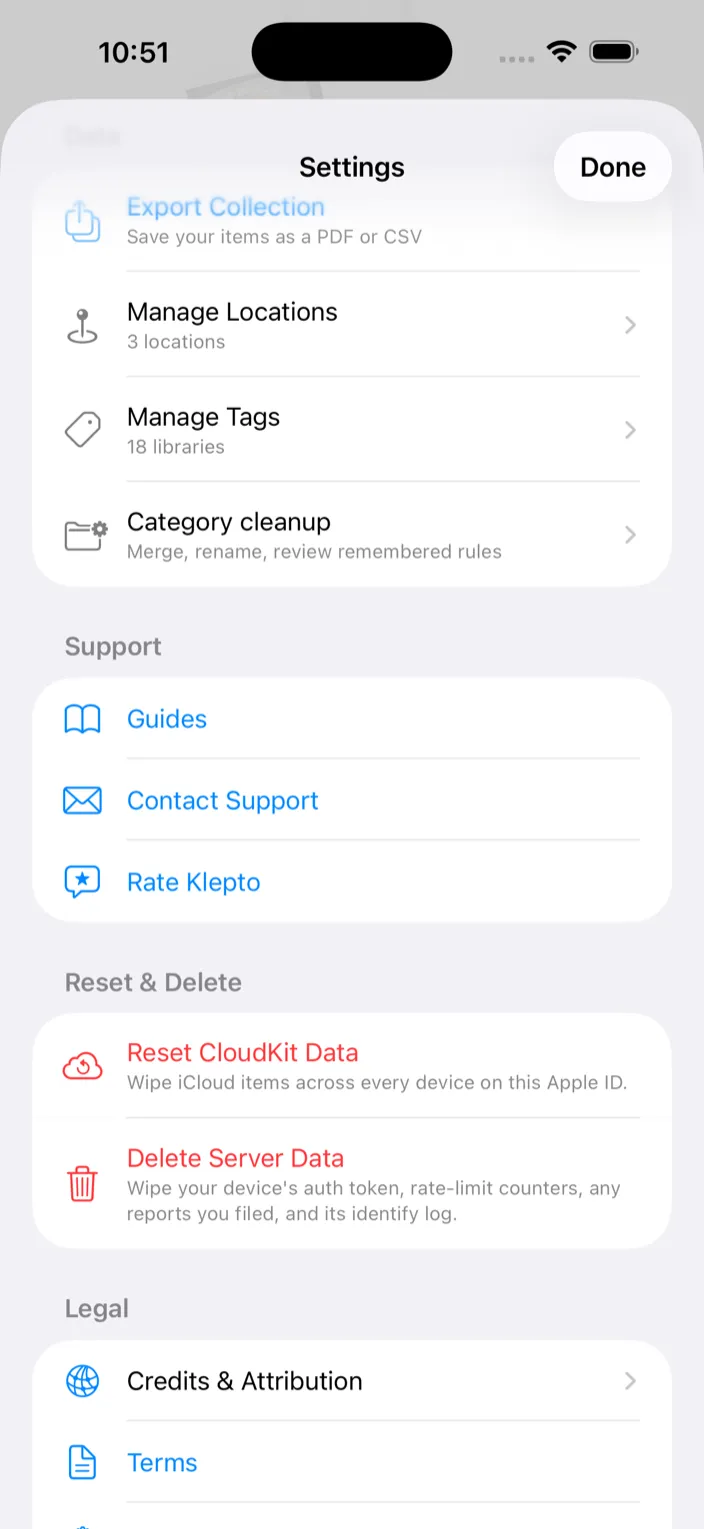
This removes the device’s server token, its rate-limit counters, any reports you filed (with their photos), and its identify log. Your item collection isn’t touched. The app enrolls again on the next launch.
Delete what’s in iCloud
- Settings → Reset & Delete.
- Tap Reset CloudKit Data, then Delete Everything.
This wipes every Klepto item, photo, and location from iCloud — across every device signed in to the same Apple account — and clears the local data on this device.
Delete what’s on this device only
Delete the Klepto app. The local database and photos go with it. iCloud is untouched.
Tips
- Do the export before any of the deletes. There’s no undo.
- Deleting the app does not touch iCloud. Use Reset CloudKit Data if you want that gone too.